How-to
Transfer a Grid to Paper
The grid on your photo is only half the method. The same grid has to end up on your drawing paper, and you no longer rule it by hand: the tool prints it at true size, or gives you ruler marks for surfaces that never see a printer.
Set the cell size in real units
Pick centimetres or inches and enter the cell size you want to draw with. Columns and rows follow automatically, fractions included: a 4 cm cell on an A4 sheet gives 5.3 × 7.4 cells, exactly as it will be on paper.
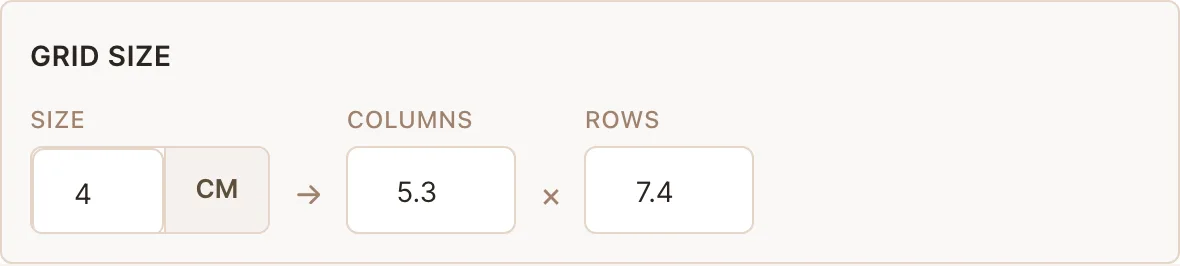
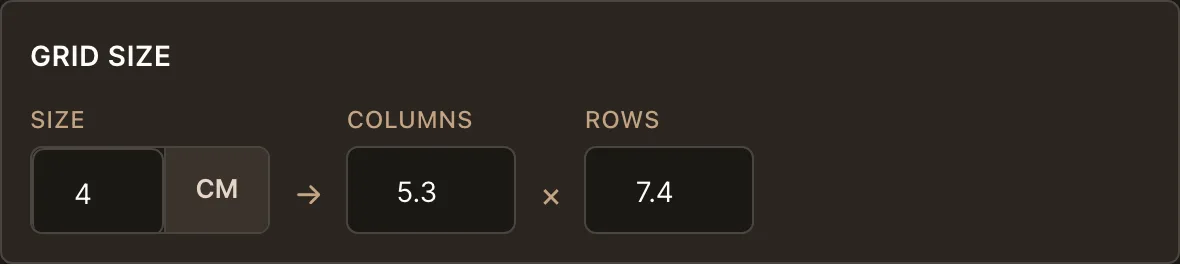
Enter the cell size. The tool computes the rest. Choose your paper and print the empty grid
Open the Export tab and pick your sheet under “Transfer to paper”. The panel appears once a grid exists. The tool builds a faint, true-size grid PDF with the same number of cells as your reference, and states the cell size you will actually get on that sheet: it shrinks if the paper is smaller than the canvas you set up. Print at 100 %, never “Fit to page”, and the stated size is what you measure.
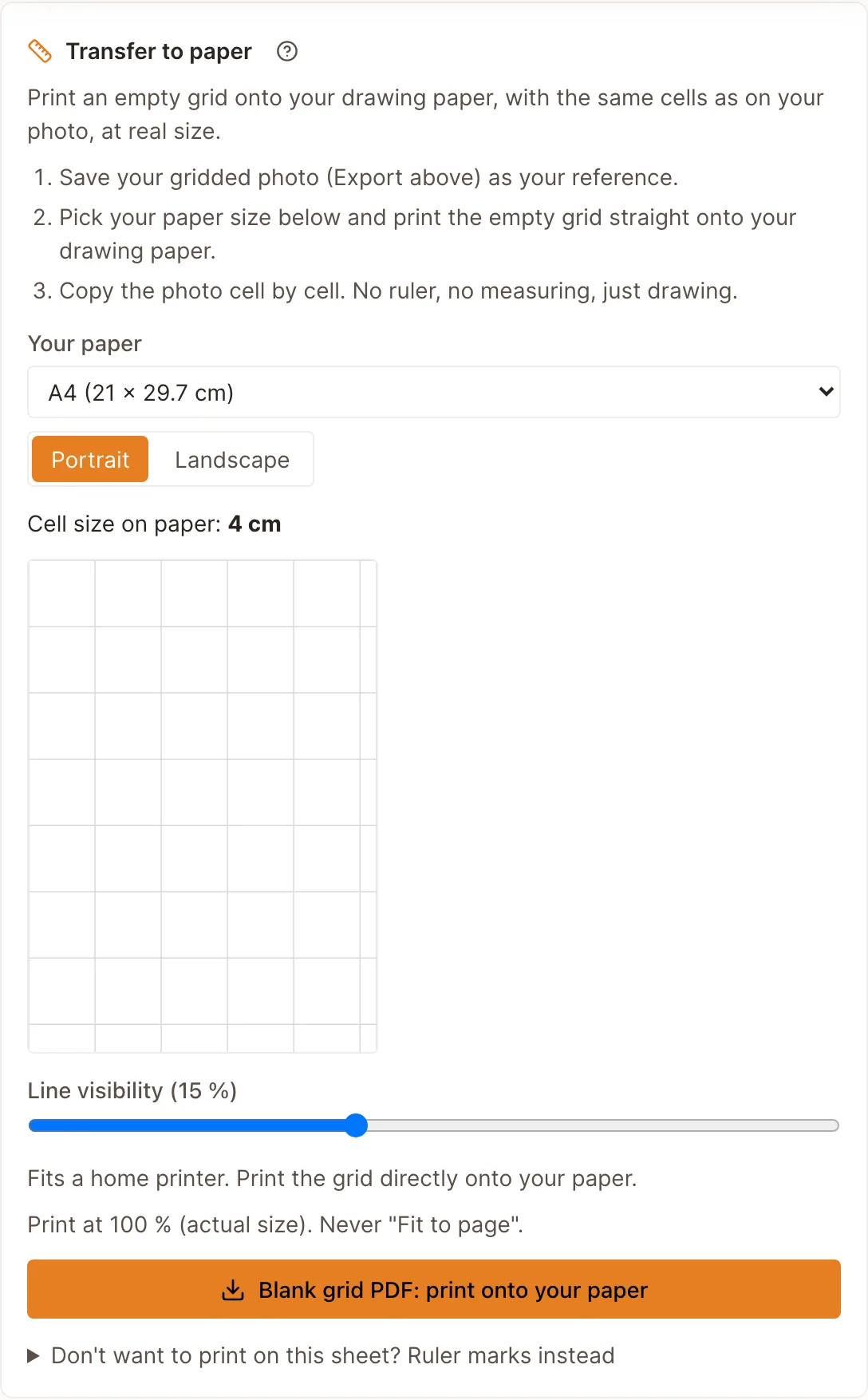
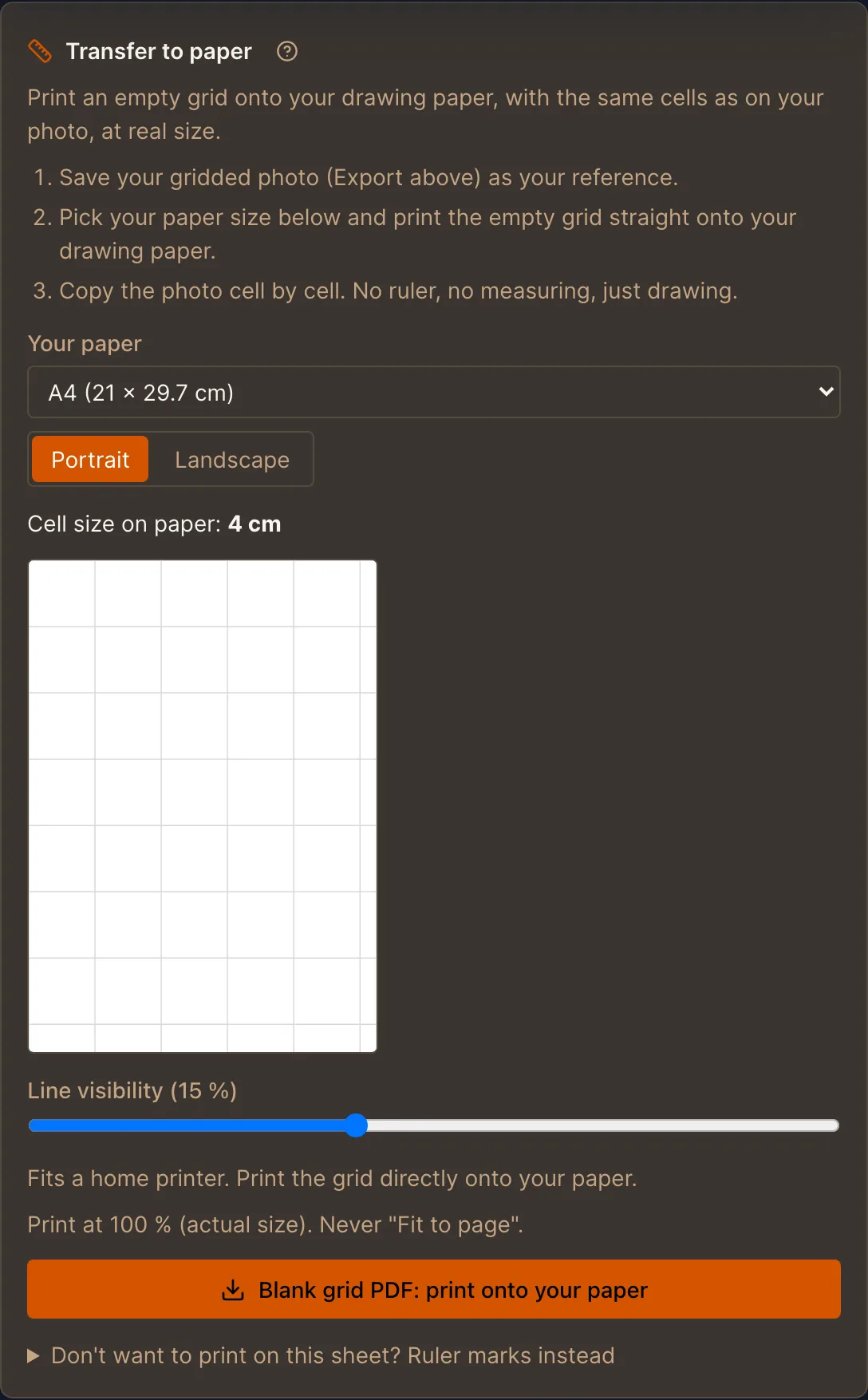
Pick the sheet. The panel states the cell size you will get. For canvas: use the ruler marks instead
A stretched canvas or a 1-metre sheet will not go through a printer. Enter its real size and the tool picks the method that fits: up to about 60 centimetres it prints a paper ruler strip you hold against the edge, and beyond that it lists the exact marks for each edge. Lay a ruler or tape measure along the edge, put a dot at every mark, then connect opposite dots with a straightedge or a chalk line.
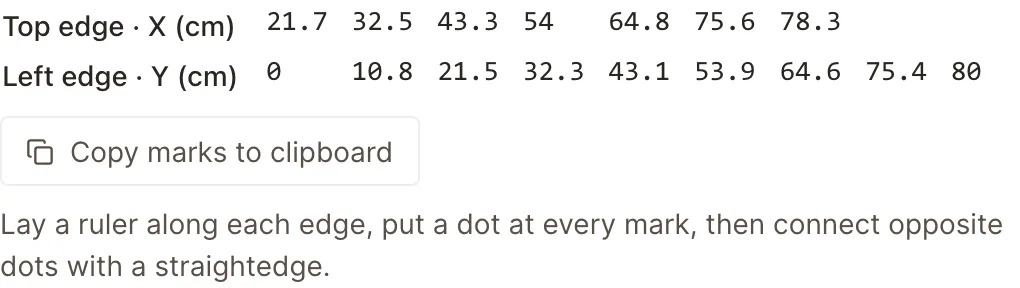
A 100 × 80 cm canvas, with every mark, edge by edge. Draw cell by cell
Both grids now carry the same cells. Copy one square at a time and the proportions come out right, with no compounding ruler errors and nothing drawn on your reference photo.
Try it with your own photo
Drop a reference below. The tool opens in canvas mode and walks you through these steps.
Frequently asked questions
- Why don't my printed squares measure exactly right?
- Almost always the print dialog: “Fit to page” or “Shrink oversized pages” rescales the sheet. Choose 100 % or “Actual size”, print one page, and measure a single cell with a ruler before printing the rest.
- What if my paper has a different shape than the photo?
- Cells stay square. The grid is fitted and centred with even margins, or you crop the photo to your paper's ratio first, right in the tool.
- Can I use this with a grid I made somewhere else?
- Yes. Count the columns and rows on your reference, enter them on the transfer to canvas tool, and pick your paper. The blank grid needs no upload at all.
- How faint should the printed grid be?
- Faint enough to erase, dark enough to see. The Line visibility slider runs from 5 to 30 %: 15 % suits pencil on white paper, and charcoal wants a higher number, because more visibility prints a darker line.