How-to
Print a Grid Over Multiple Pages
Most home printers stop at A4, but a drawing does not have to. Poster print slices your gridded reference across several sheets at true size, with cut lines and glue strips, so you can tape together a full-size cartoon for a canvas or a wall.
Set the finished size first
Switch to Grid on Canvas and enter the size the finished piece should have, for example 100 by 70 centimetres. The photo is fitted inside that surface and the cells are computed for it, so the poster you print later matches the wall, not the screen.
Choose Print Poster in the Export tab
The export row offers three routes. PNG is for screens, PDF fits a single sheet, and Print Poster tiles the reference across as many sheets as the size needs.
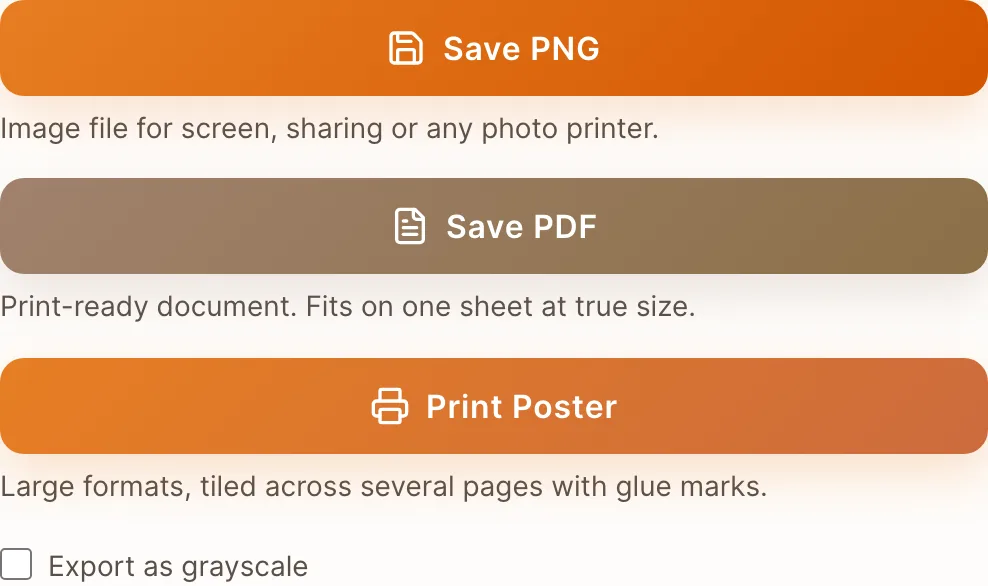
Each export says what it is for. Poster is the one that tiles. Print at 100 percent, never fit to page
This is where most tiled prints go wrong. Any scaling in the print dialog breaks the true size, and the cells no longer match the grid on your reference. Choose Actual size, print one sheet, and measure a single cell with a ruler before you commit the rest of the paper.
Cut, overlap and glue
Interior sheets carry a cut line on their left and top edge and a glue strip on the right and bottom. Edge sheets carry only the marks they need, so the first sheet has no cut line at all. Trim wherever you see a solid cut line, lay the trimmed edge onto the dashed glue strip of the sheet already on the table, and work across one row at a time.
Print your own reference
Drop a photo below. The tool opens in canvas mode and guides you to the poster export.
Frequently asked questions
- How many sheets will I need?
- The panel counts them for you and updates as you change anything. Three things decide it: the finished size, your paper, and the overlap left for gluing. A 100 by 70 centimetre poster on A4 portrait comes to eighteen sheets at the default 10 mm margin and 10 mm overlap, and to eight on A3.
- Why do my tiles not line up?
- Almost always scaling in the print dialog. Fit to page and Shrink oversized pages both resize the sheet by a few percent, which is invisible on one page and obvious across eighteen. Print at 100 percent.
- Can I print on larger paper instead?
- Yes. Pick A3, Legal or Tabloid and the same reference is spread over fewer sheets. A print shop with A0 usually needs no tiling at all.
- Does the grid stay true to size on the poster?
- Yes, as long as you set a real canvas size in step 1 and leave the scale at 100 %. Then a 5 centimetre cell measures 5 centimetres on the assembled poster, matching the grid you draw on your canvas.