Used by 170,000+ artists
Grid Overlay for Digital Artists Perfect Proportions in Any Digital Medium
Whether you paint on a tablet or desktop, our digital art grid tool creates pixel-perfect overlays you can import as layers. Get accurate proportions without switching apps.
- Export PNG with transparency for layer import
- Set exact pixel dimensions to match your canvas
- Works with any digital painting software
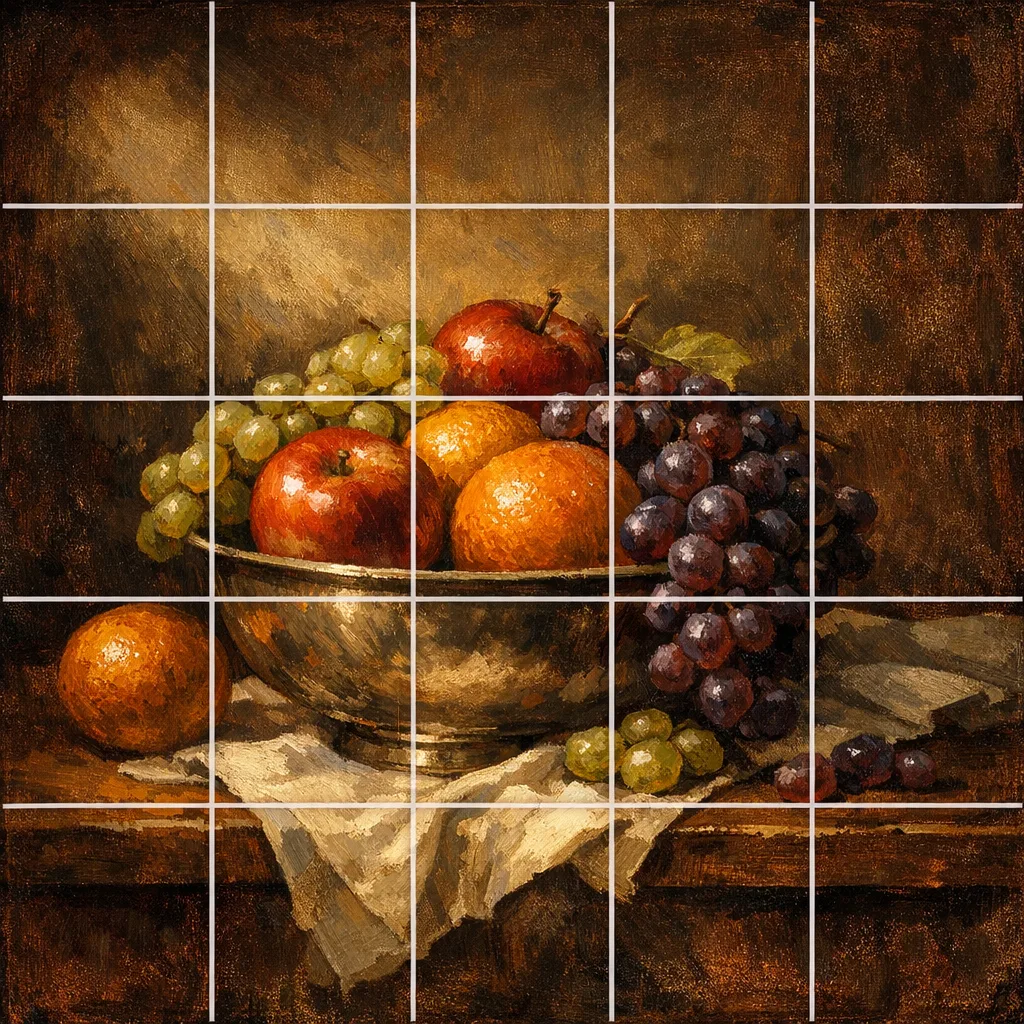
Export grid as transparent PNG layerImage was generated with AI

Digital Art Proportion Challenges
Common issues when working digitally
Canvas Size Mismatch
Reference photos rarely match your canvas dimensions. Manual scaling leads to proportion errors.
Eyeballing Proportions
Estimating where elements should go wastes time and often requires multiple corrections.
Grid Tool Limitations
Built-in grids don't always align with your reference. You need grids ON the image, not just the canvas.
The Solution
Grid Overlays as Importable Layers
Create a grid directly on your reference image, then export it as a transparent PNG. Import it as a layer in any digital art software. Toggle visibility as you paint.
Try it now →Built for Digital Workflows
Features digital artists actually need
Custom Pixel Dimensions
Enter your exact canvas size in pixels. The grid exports at the same resolution, with no resizing, no quality loss, perfect alignment when imported.
Transparent PNG Export
Grid lines on a transparent background. Drop it into your layers panel, reduce opacity, and paint underneath. Delete when done.
Drag to Align
Position the grid so lines fall where you need reference points. Align with eyes, horizon lines, or key composition elements.
Cell Coordinates
Reference labels (A1, B2, C3) help you track which section you're working on. Great for complex illustrations with many elements.
Edge Detection
Convert your reference to line art to see contours more clearly. Helpful for identifying major shapes before you start painting.
Focus Mode
Isolate individual cells to concentrate on one area at a time. Reduces visual clutter when working on detailed sections.
Digital Grid Workflow
Four steps to accurate digital paintings
1
Upload Reference
Drop your reference image into the tool. Any format works: photos, sketches, or existing artwork.
2
Set Canvas Size
Enter your target canvas dimensions in pixels. The grid will export at exactly this size.
3
Customize Grid
Choose grid density and drag to align with key elements. Set line color and thickness for visibility.
4
Export & Import
Download as transparent PNG. Import as a layer in your art software. Paint with confidence.
170,000+Artists use GridMyPic
PNGTransparent layer export
Any SizeCustom pixel dimensions
"The grid method works just as well for digital art as traditional media. The key is having a reference overlay you can toggle on and off while you work."Learn more about the grid method →
Digital Art Grid Questions
What pixel size should I export at?
Can I use this for illustrations and concept art?
What grid size works best for digital painting?
Ready to Level Up Your Digital Art?
Create a grid layer for your next painting in seconds.