How-to
Share a Grid Setup With a Link
A class of thirty should not each fumble through the same settings. Configure the grid once, copy the link, and everyone opens the tool already set up, with their own photo and nothing of yours.
Configure the grid the way you want it copied
In the Grid tab, set the unit, the cell size and the canvas size, then the line colour, thickness and style, and the coordinate labels if your class needs them. A composition guide lives in the Composition tab, outline strength in the Effects tab, and the grayscale switch sits with the export options. All of them come along. Get the cell size right for the paper your students actually have, because that is the number they will draw with.
Copy the link from the Export tab
Open Export and find Share this setup. The link is already built and updates as you change the settings, so you can copy it whenever the configuration looks right.
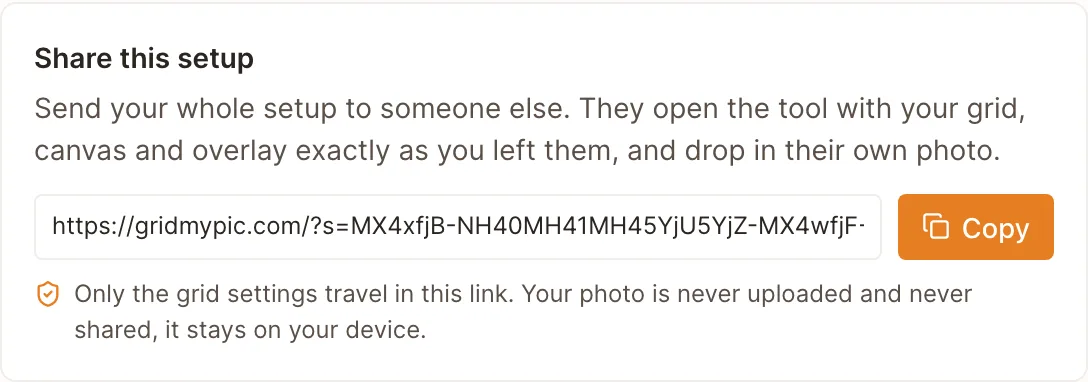
The whole setup, packed into one code. Copy it and hand it over. Send it, and let them bring their own photo
Whoever opens the link lands in the tool with your cell size, canvas and overlay in place, and drops in their own reference. Nobody has to be told which boxes to fill in, and nobody has to make an account.
The setup travels, the photo does not
Everything travels. Not a selection of settings: the whole workspace, down to where you dragged the grid, where you pinned the golden spiral and how far you rotated it. The recipient opens the tool looking at your setup, then drops in their own photo. The one thing that never travels is the picture, because it is never uploaded in the first place.
Build a setup worth sharing
Drop a photo below, set it up once, and the link is waiting in the Export tab.
Frequently asked questions
- Is my photo uploaded when I share the link?
- No. Your image is processed in your own browser and never sent to us, so there is nothing of it in the link. Only the grid settings travel.
- What exactly is in the link?
- Every setting the tool has: the mode, the unit, the cell size, the canvas, where you dragged the grid, the grid colour, thickness, style and opacity, the coordinate labels, the background, the grayscale export switch, your outline strength, and the composition overlay down to the spiral's anchor, position, scale and rotation. It is packed into a single code in the address, so a link carrying the entire workspace runs to about 160 characters.
- Do my students need an account?
- No. The link opens the tool ready to use. There is nothing to install and nothing to sign up for.
- Can I put the link in a worksheet or on a whiteboard?
- Yes. The link is short enough for a QR code as it stands, and it carries its own settings, so nothing has to stay online for it to keep working. A link you print on a worksheet today still opens the same setup next year.