How-to
Make Grid Worksheets for a Class
One sheet printed at true size, with the cell size you chose and the coordinates your class will use, plus the pages a lesson needs: the reference picture under the same grid, and a mirrored sheet for pair work. This walks through the six decisions in the worksheet maker and the one setting in the print dialog that decides whether the cells come out right.
Choose the paper your school prints on
Letter in North America, A4 almost everywhere else; Legal, Tabloid and A3 are there for bigger sheets. Portrait or landscape follows the reference: a standing figure wants portrait, a landscape wants landscape. The margin is the blank border on all four sides. The default of 12.7 mm (half an inch) clears the area most printers cannot reach; narrow it only if you know yours prints closer to the edge.
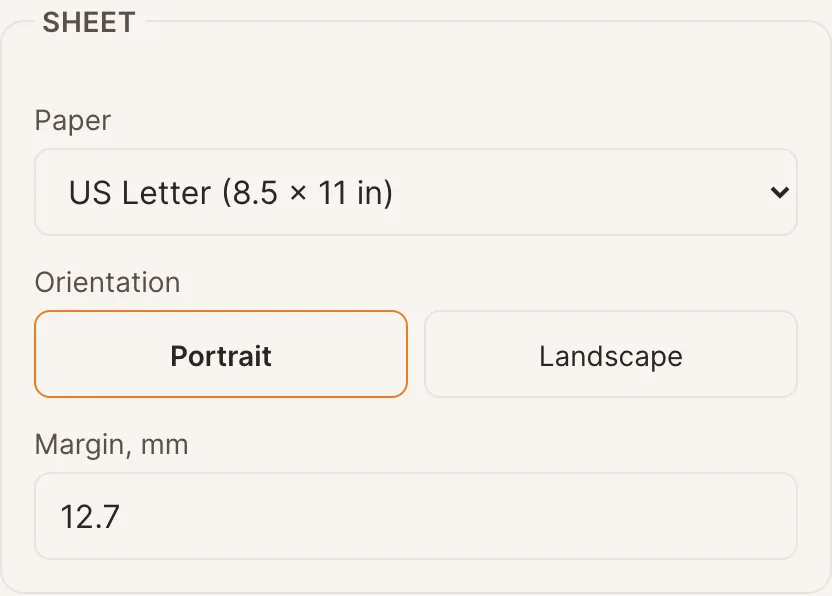
Paper, orientation, margin. Everything else is measured inside these. Set the cell by size, or by count
By size is the teacher's setting: one inch, 2 cm, half an inch, and the maker tells you how many cells that gives on the sheet. Use it when the reference was gridded in the same unit, because a 1-inch cell on the sheet and a 1-inch cell on the reference match without arithmetic. By count is for a reference that already has, say, 8 by 10 cells: the maker sizes square cells to fit, and reports what size they came out at. For a first lesson, one inch or 2.5 cm; for portraits, half that.
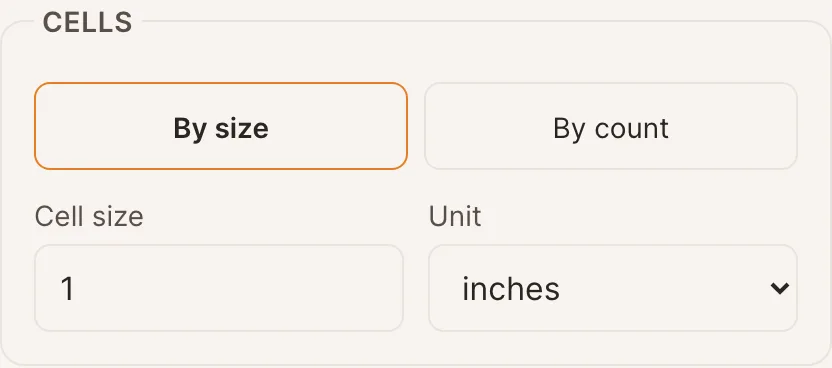
By size for a reference gridded in inches or centimetres; by count for one gridded in cells. Switch on coordinates and the name line
Coordinates put letters across the top and numbers down the side, so a square has an address: "look at C4" works across a classroom in a way pointing does not. The name and date line sits above the grid. The variant changes what the sheet asks: a mirrored grid runs the letters right to left, so the student draws the picture flipped square by square; a rotated grid puts letters down the side for a reference held sideways; half cells add dashed midlines for a finer target without a finer grid.
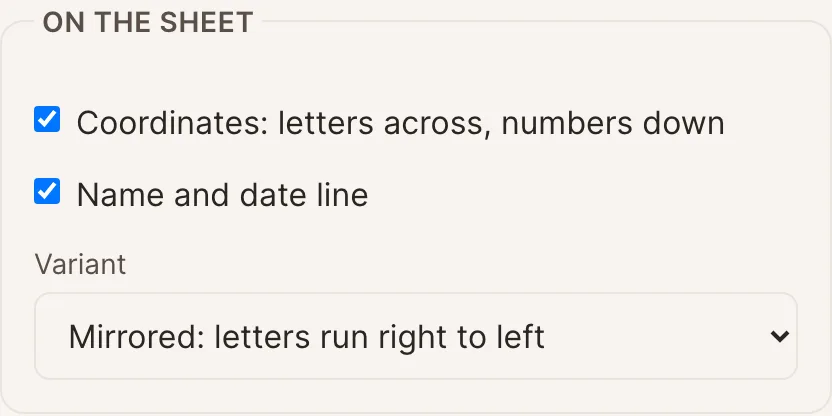
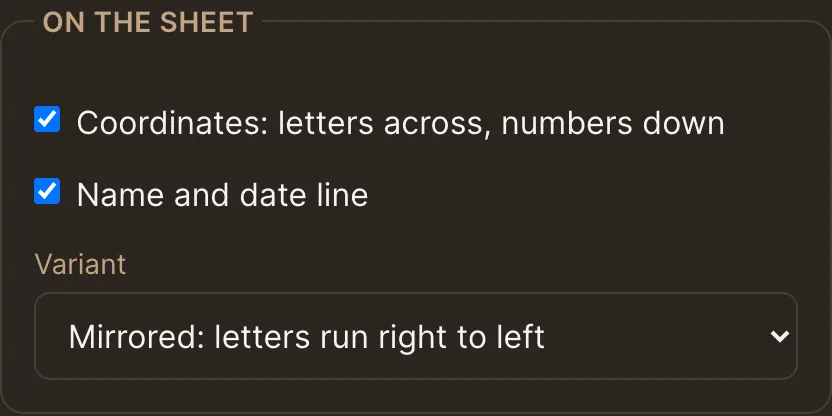
Mirrored is the pair-work sheet: same picture, letters reversed. Add the pages the lesson needs
The PDF is one sheet; the printer makes the copies. Tick pair work and a second page carries the same grid mirrored, letters running right to left, so one partner draws the picture and the other draws it flipped and they check each other square by square. Choose a reference picture and it becomes the first page, cropped to the shape of the grid, with the same grid and the same letters over it, so the picture and the blank sheet match square for square.
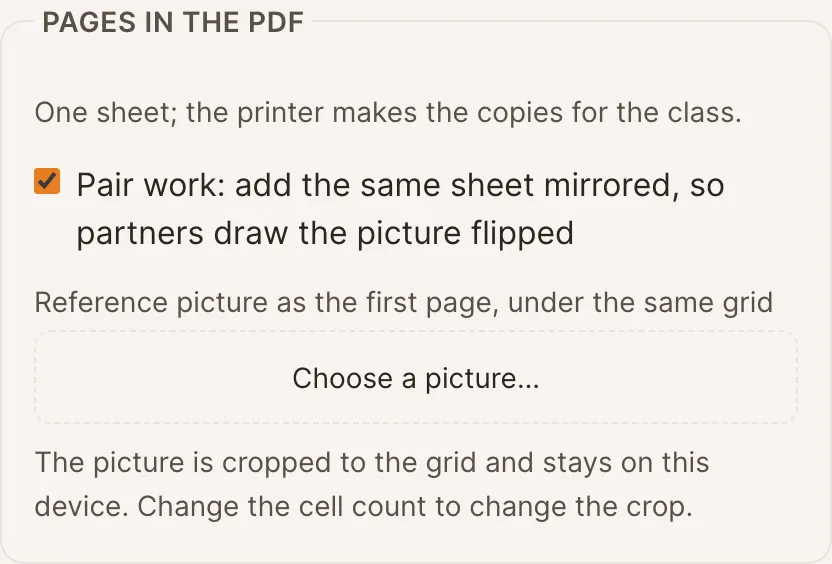
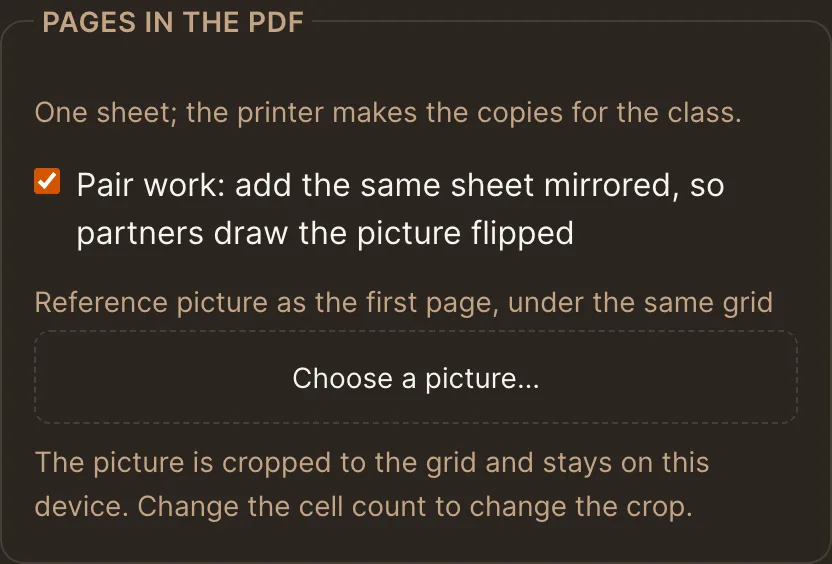
Pair work adds the mirrored sheet; the reference picture goes in as page one. Read the summary, then download or share
The line above the buttons says exactly what the sheet is: paper, orientation, cells, cell size, and how many pages the PDF has. If the cell does not fit the paper it says so instead, and the download waits until it does. The PDF is the sheet at true size. The PNG is the same sheet at 300 dots per inch for the whiteboard. The link carries every setting: paste it into the lesson plan or send it to a colleague, and whoever opens it sees this grid and can print it. The picture is not in the link; nothing is uploaded and nothing is saved on our side.
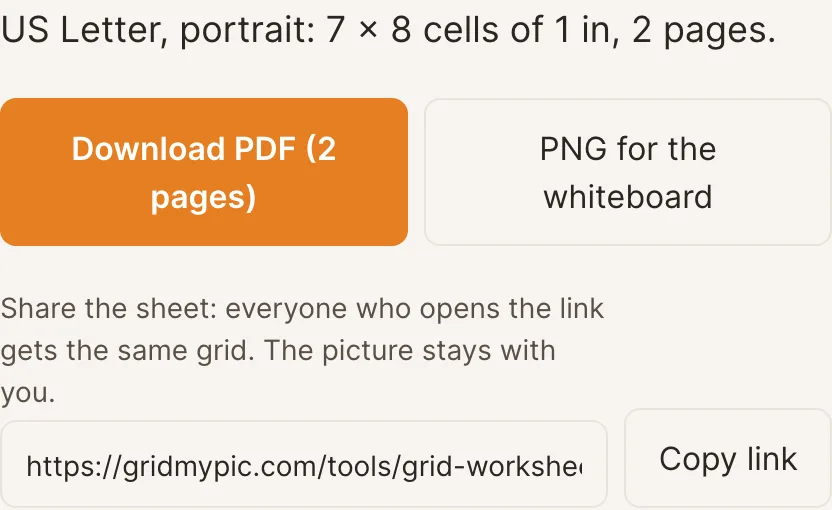
The summary is the check; the link is the record of the grid. Print at actual size, and measure one cell
In the print dialog choose "Actual size" or a scale of 100 percent. "Fit to page" shrinks the sheet by a few percent, and a one-inch cell becomes about 24 millimetres, which no longer matches the reference. Print one sheet, lay a ruler across one cell, and only then print the rest. The reference printed from the image grid generator follows the same rule, and the two only match on paper if both went through the printer unscaled.
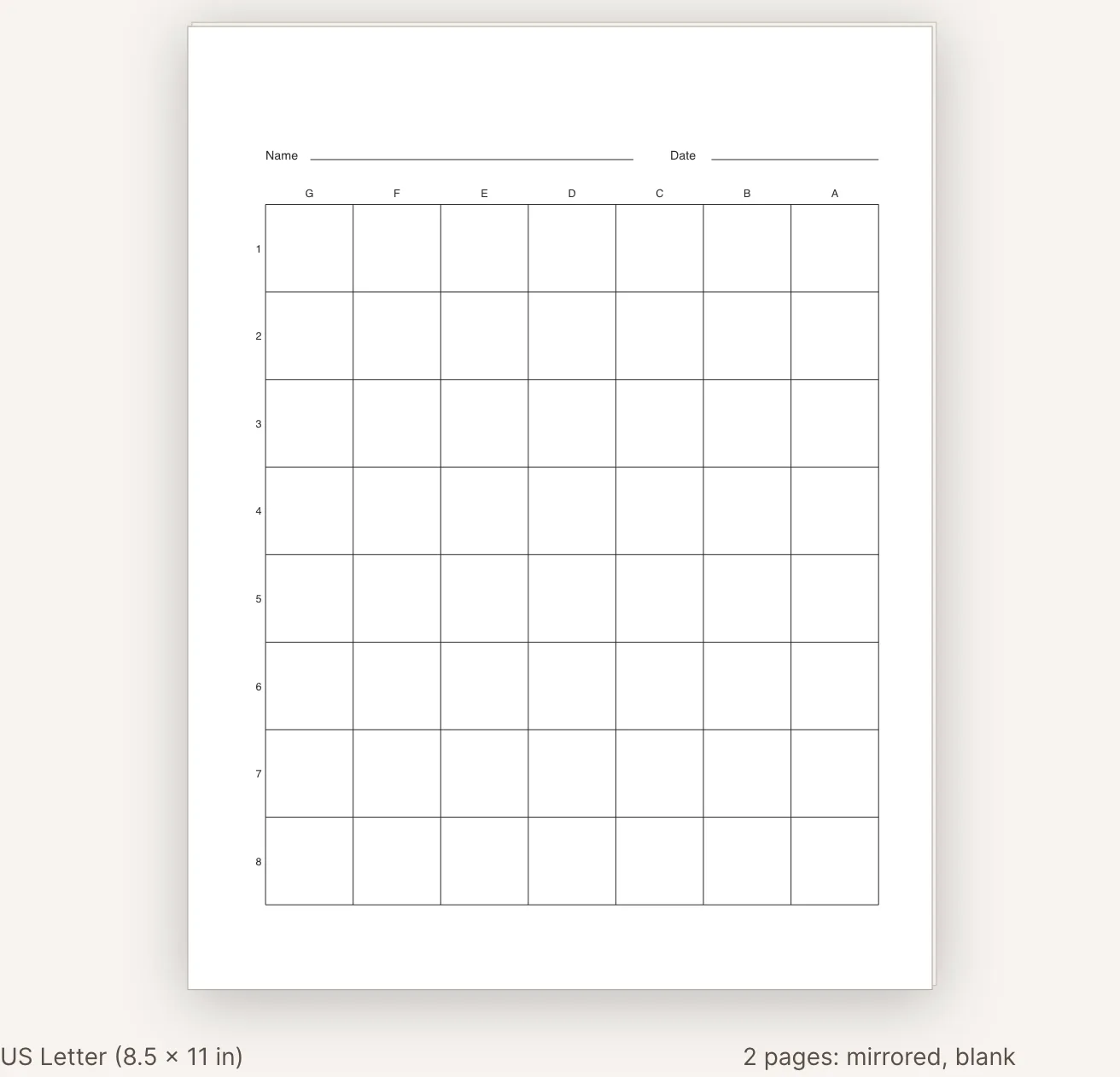
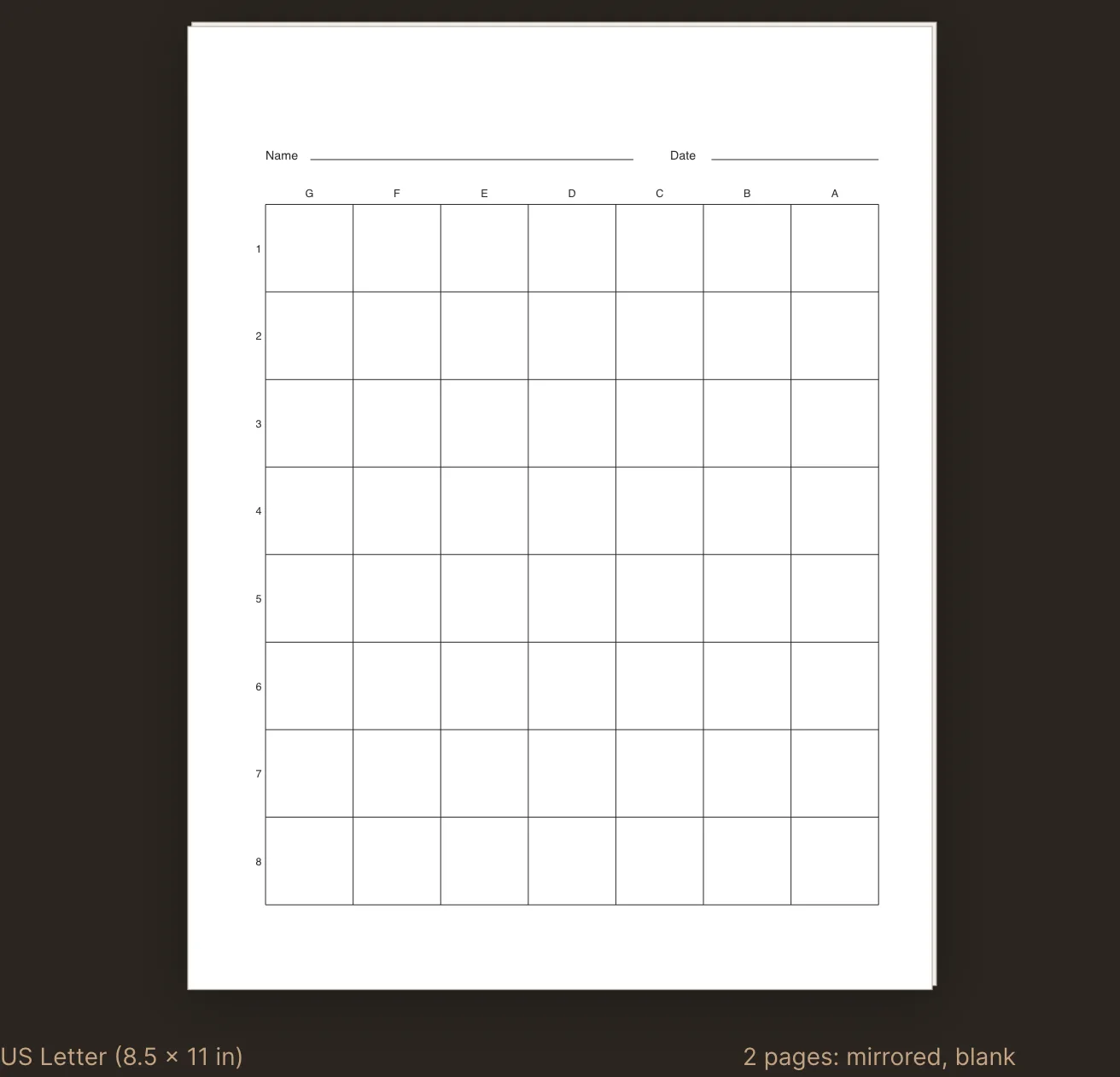
The preview is drawn from the same millimetres as the PDF, so what you see is what prints.
Make the worksheets
The maker runs in the browser, needs no account, and the sheets are yours to print and share.
Frequently asked questions
- How do I get thirty copies?
- From the printer. The PDF is one sheet, or two with pair work, or three with a reference page; print it as many times as the class needs. Every copy is the same sheet at true size, which is the point.
- The cells printed smaller than the maker said. Why?
- The print dialog scaled the page. "Fit to page" and "shrink to printable area" both shrink the sheet by a few percent. Choose actual size or 100 percent, and check one cell with a ruler on the first copy.
- Can I give different students different grids?
- Yes. Make one set with large cells and one with small, both with coordinates. Every sheet keeps the same paper and the same letters and numbers, so a student on a coarse grid and one on a fine grid can still talk about the same square, C4, on the reference.
- Do students need an account to use the link?
- No. The link opens the maker with the settings in it, and the PDF is made in their browser. Nothing is uploaded and nothing is stored.
What to do with the sheets
The art teachers' page has a 45-minute lesson built on these worksheets, with differentiation by cell size. The printable grid library has twelve finished sheets when there is no time to set anything.