How-to
Crop a Photo to Your Canvas Ratio
Your photo and your paper are almost never the same shape. Fit one inside the other and a band of the sheet stays empty. Cropping first decides what the drawing is about, instead of letting the leftover margin decide it for you.
Set your real canvas size first
In the Grid tab, switch to Grid on Canvas and enter the sheet you will actually draw on, or pick it from the paper presets. The crop only means something once the tool knows the shape you are aiming at, so this step comes before the cropping, not after it.
Watch for the crop offer
If fitting your photo into that sheet would leave 15 percent or more of the paper empty, the tool says so and offers to crop. The offer only appears after you choose a paper size yourself, never on upload, at most twice per photo, and it stops once you have declined that shape or applied a crop. You can also open cropping at any time with the Crop button above the canvas.
Move the photo, not the frame
The frame is fixed at your canvas ratio and carries its measurements in the corner. The picture moves underneath it: drag to reposition, or use the zoom slider between 100 and 400 percent. Apply crop commits it, Cancel leaves the photo alone, and Use whole image undoes an earlier crop. On a desktop keyboard the arrow keys nudge and the plus and minus keys zoom, once you have clicked the picture so the frame has focus, and Enter and Escape do the same as Apply and Cancel.
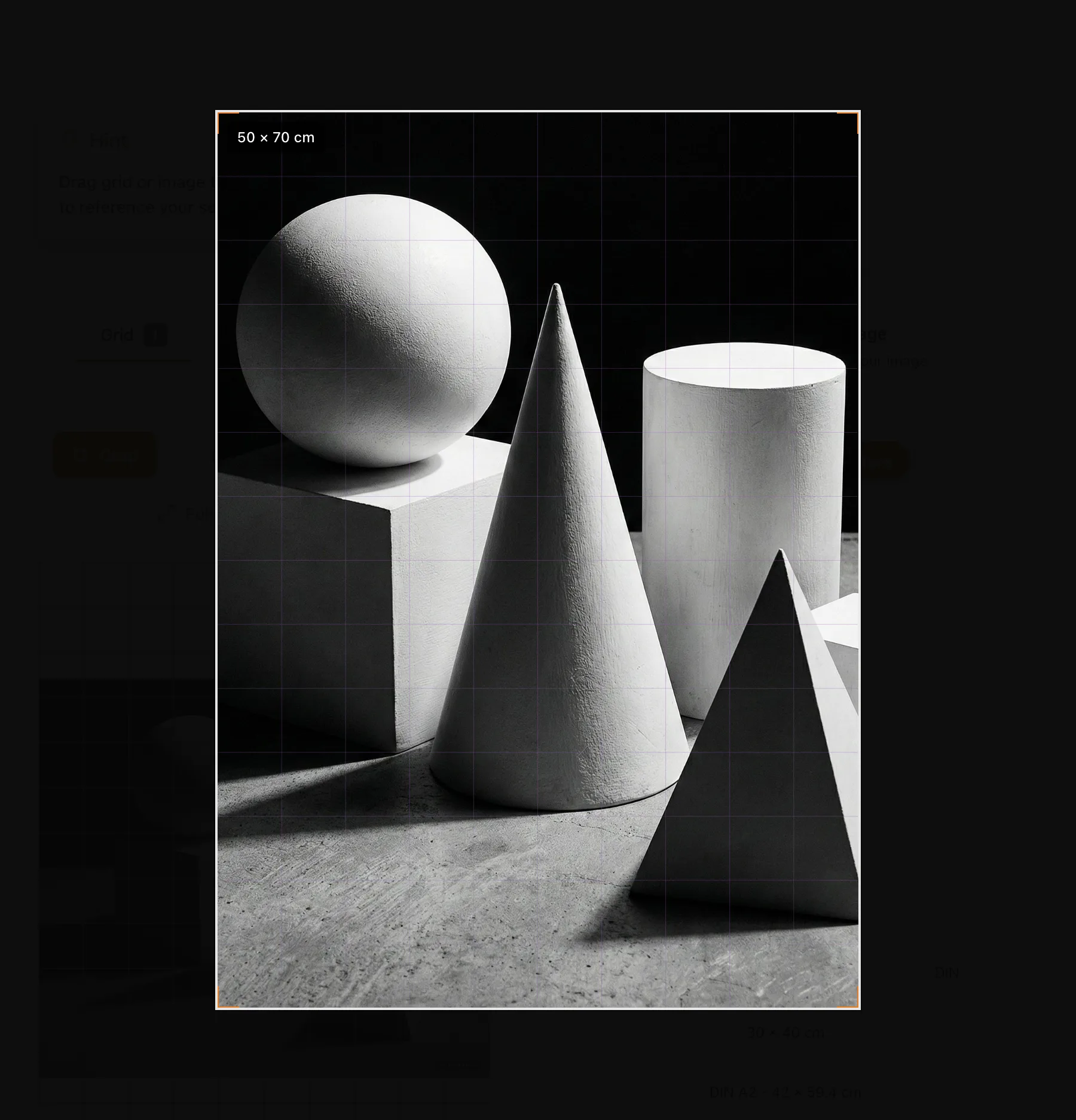
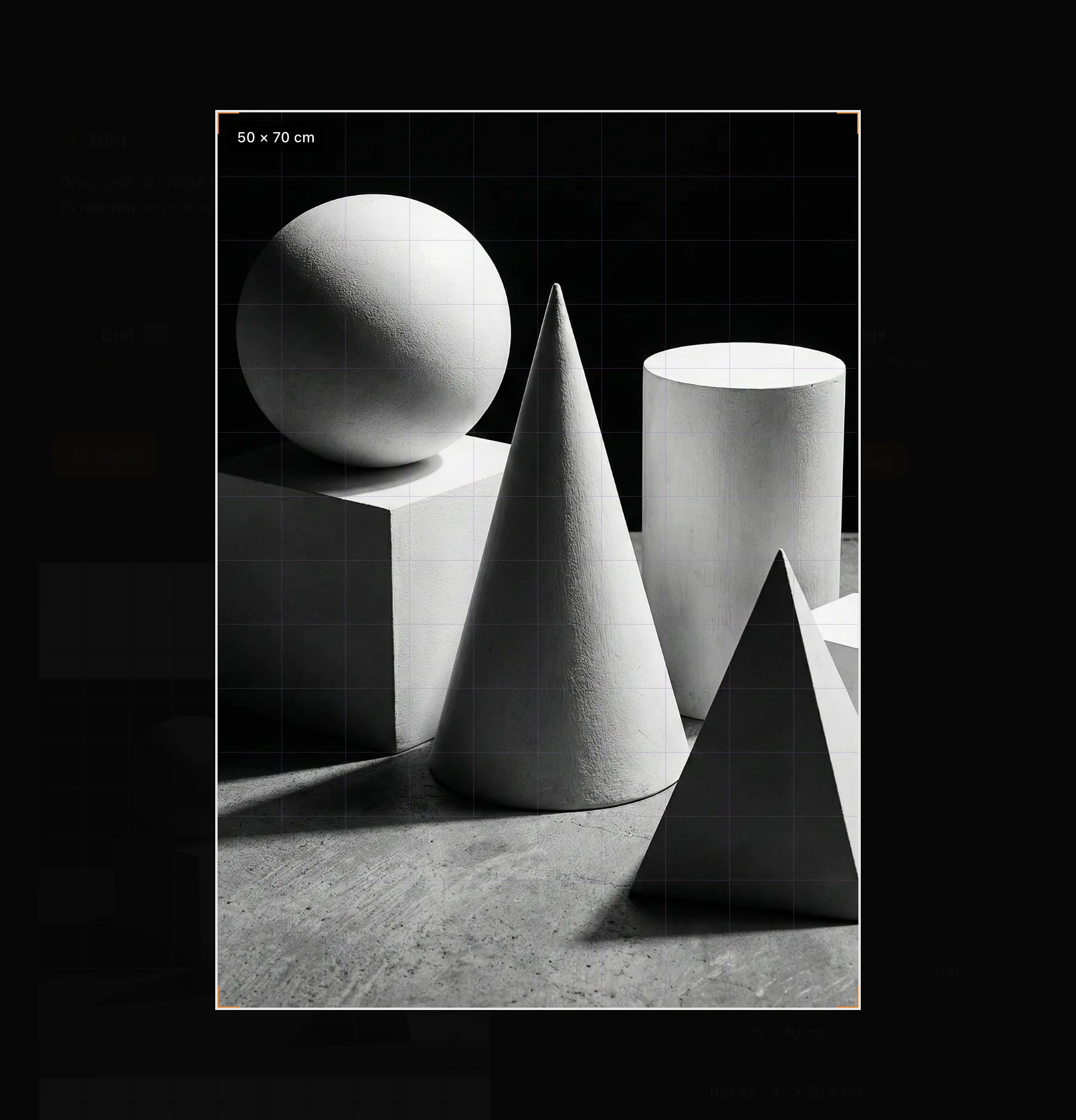
The frame holds your canvas ratio and says so. Everything dimmed falls outside the drawing. Judge the composition while you crop
Your grid stays visible over the crop, so you can see which cells the eyes or the horizon will land in before you commit. If you are also using a composition overlay, this is the moment to check that the subject still sits where you want it.
Crop your own reference
Drop a photo below. The tool opens in canvas mode and shows you where the crop lives.
Frequently asked questions
- Does cropping change my original photo?
- No. The file on your computer is never touched, and nothing is uploaded anywhere. Every crop is cut from the untouched original, so reopening it and changing your mind never degrades the picture, and effects such as outlines are reapplied to the new framing.
- Why did the tool suggest cropping?
- Because the paper you picked and the photo you loaded are different enough in shape that a noticeable part of the sheet would have stayed empty. It is a suggestion, not a correction. A wide margin is a legitimate choice, and dismissing the offer for that shape stops it coming back.
- Can I crop to a shape that is not my canvas?
- In Grid on Canvas mode the frame follows your canvas ratio, because that is the shape you are going to draw on. To crop differently, change the canvas size first and the frame follows. If you open Crop without setting a canvas, the frame keeps the photo's own ratio and the label says so.
- Should I crop before or after setting the cell size?
- Crop first. Cropping changes how much of the picture the grid covers, so cell counts settle down once the framing is decided.